
NODELOCK

OFFICIAL GUIDE

Get started with NODELOCK.

The complete path from download to your first analysed session.

Before you begin

  • A Mac running macOS 14 Sonoma or later
  • An open table in a recognized poker client
  • A confirmed NODELOCK account with an active licence
  • Internet access for licence checks and AI features

The shortest path

Follow these actions in order to start a first session without changing advanced settings.

  1. 01

    Download the app

    Install the .dmg in your Mac Applications folder.

  2. 02

    Confirm your account

    Open the email link, choose a password, then sign in.

  3. 03

    Activate access

    Activate 100 hands for €5 or choose Premium. The licence follows your account.

  4. 04

    Allow screen recording

    macOS must let NODELOCK see the table window you select.

  5. 05

    Choose the table

    Open your table, select its window in NODELOCK, then start the session.

  6. 06

    Read the advice

    The overlay shows the reading, suggested action and explanation. NODELOCK never clicks for you.

In this guide

Check your Mac and environment

NODELOCK is currently distributed as a signed macOS app outside the Mac App Store.

System requirements

Use macOS 14 Sonoma or later. The universal app runs on Apple Silicon and Intel.

Available platforms

The macOS version is available. Windows is in development and is not available today.

Poker room rules

Check the platform rules before use. Do not enable real-time assistance where it is prohibited.

Player responsibility

NODELOCK is an educational tool. It guarantees no winnings and automates no click, bet or game action.

App availability

macOS
Available, macOS 14+, Apple Silicon and Intel
Windows
In development, not currently available

Download and install the app

The same .dmg contains the app for Apple Silicon and Intel Macs.

Download

Get the latest NODELOCK .dmg from the Download page.

Install

Open the downloaded file, drag NODELOCK to Applications, then eject the disk image.

First launch

Open NODELOCK from Applications. Internet access is required to restore the account and validate the licence.

Update

If a newer version is required, download the new .dmg and replace the app. Local data is stored separately.

Create and confirm your account

Your account connects the subscription, licence and authorized Mac. Poker data is not sent to the customer portal.

Enter your email

On the sign-up page, enter your address and accept the terms and privacy policy. Product messages are optional.

Open the secure link

Check your inbox and spam folder. The link confirms your address and opens password creation.

Choose a password

Use at least eight characters. The same password signs you into the website and macOS app.

Connect the app

Enter the same email and password in NODELOCK. The session is kept in the macOS Keychain.

Activate the trial, subscription and licence

An active licence is always required, including when you use your own API key.

€5 trial

An eligible account can buy 100 analysed hands once for €5, with no time limit, commitment or automatic renewal.

Premium

Premium includes 1,600 managed-AI hands per month, unlimited BYOK, detailed advice and deeper reports. Packs of 900, 1,900 or 3,900 hands are available.

Stripe billing

Stripe handles payment. Billing lets you view invoices, update payment, change plan or cancel at period end.

Licence activation

After trial or confirmed payment, the licence is attached to your account. Sign in on the Mac to activate the device automatically. No key entry is required in the current app.

Portal licence key

The web portal can display, copy or rotate the licence key. App sign-in remains the normal path. Rotate only for an explicit security or support need.

One active Mac

Current plans allow one device. Online checks renew access regularly. Local data is not deleted when access expires.

BYOK pays for calls at the AI provider. It does not replace a NODELOCK subscription or the plan hand limit.

Complete the official first launch

On first sign-in, NODELOCK prepares the account, Mac and history preferences.

Restore access

The app checks the session, subscription, licence, quota and minimum allowed version.

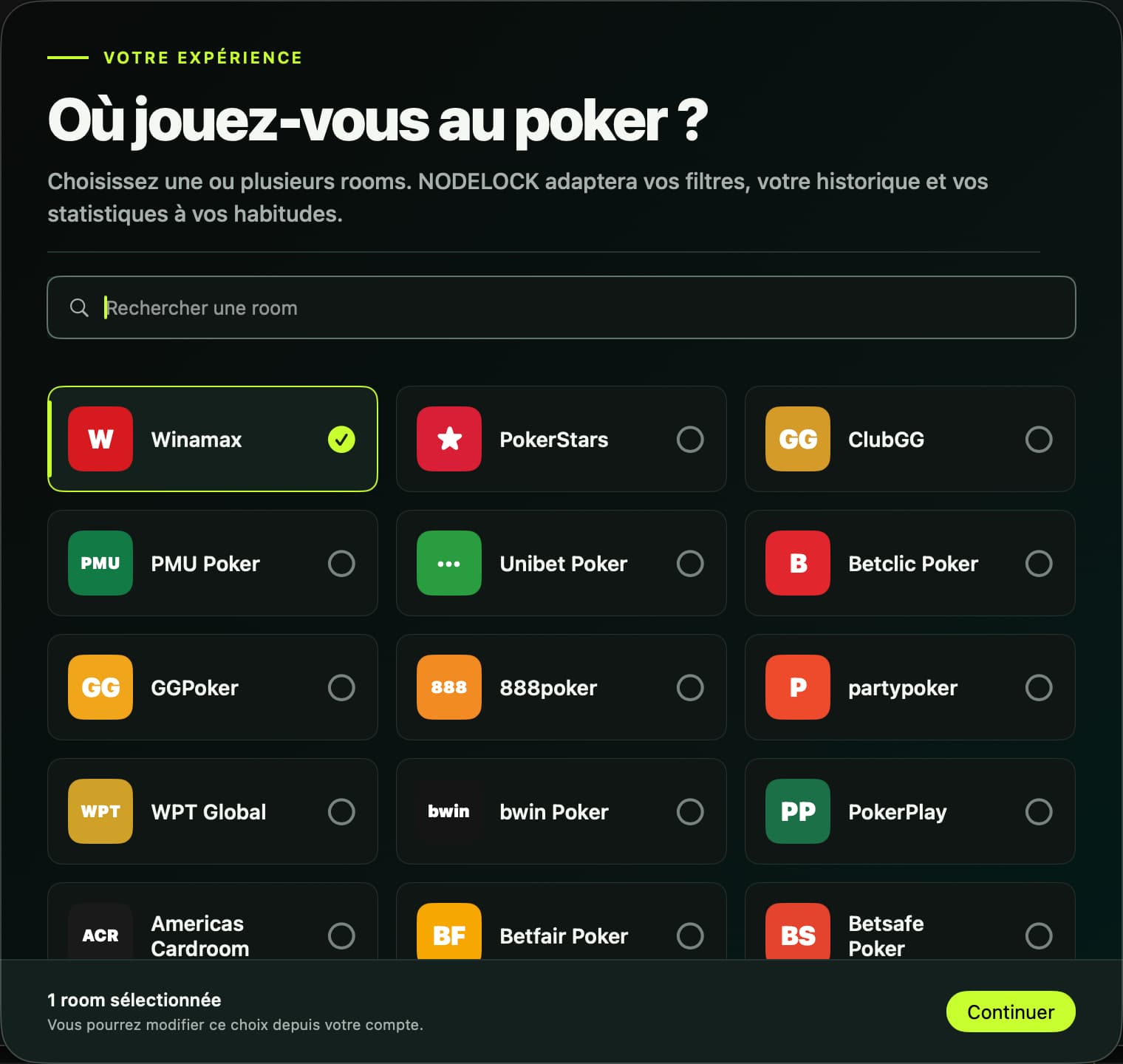
Choose your rooms

Select one or more rooms. This customizes Players and History filters and can be changed later in Account.

Keep managed AI

For a first run, keep NODELOCK-managed AI. No personal key or model selection is required.

Prepare the table

Open the poker client and table before granting macOS permission. The window must be visible on screen.

Allow macOS screen recording

This permission lets ScreenCaptureKit list and read the selected window. NODELOCK does not ask you to select the whole display.

Request permission

In Window to observe, click Request permission and allow NODELOCK in the macOS dialog.

If permission is denied

Open System Settings, Privacy & Security, then Screen Recording. Enable NODELOCK and return to the app.

If macOS does not apply it

Click Check now. Remove old NODELOCK rows with the minus button if needed, authorize again, then quit and reopen the app.

Capture scope

The picker only lists recognized poker client windows. Other apps and the desktop are not offered.

Choose the correct table window

NODELOCK observes one window at a time. It must belong to the poker client, remain open and stay sufficiently visible.

Open the table

Launch the client, join or open the table, and keep the window visible on your Mac.

Refresh the list

In Window to observe, click Refresh if the table does not appear immediately.

Check title and size

Each row shows the app name, window title and dimensions. Select the table, not the lobby.

Start the session

When Table ready appears, check Automatic or Manual mode, then click Start session.

Closing the table or removing macOS permission stops capture and requires a new selection.

Use the live session and overlay

Live Session shows capture state, the latest reading, useful statistics and the report in progress.

Automatic mode

NODELOCK watches the window and starts an analysis when it detects the hero turn.

Manual mode

No periodic analysis is sent. Click Analyse in the overlay to capture and analyse the current decision.

Read the advice

The overlay can show FOLD, CHECK, CALL, BET or RAISE, the suggested amount, confidence, reasons and available table context.

Move or lock

Use Editing in Settings to move the overlay. Locked lets clicks pass through. Command Shift O shows or hides it.

Correct a reading

Report a bad read or open snapshot correction. Diagnostic captures are kept only if you enabled that setting.

Stop cleanly

Stop the session before closing the table or changing analysis mode and coaching profile.

Choose managed AI or BYOK

Both modes remain subject to your NODELOCK licence and hand allowance.

NODELOCK-managed AI

Recommended for starting. NODELOCK manages the provider and models. No personal secret is required.

Your own API keys

BYOK currently supports OpenAI, Anthropic, Google Gemini, xAI Grok and OpenRouter. The provider bills your account directly.

Save and test a key

In Settings, choose the provider, enter the key, click Save, then Test. No poker data is sent by the test.

Choose models

In BYOK, choose provider, model and reasoning separately for table reading and recommendation.

Protect secrets

Each key stays in this Mac's Keychain, isolated by account and provider. It is not copied to the web portal or poker database.

Delete a key

Use Delete in provider settings. If the active BYOK mode depended on it, NODELOCK returns to managed AI when access allows.

Managed AI

  • No personal key
  • Provider and models managed by NODELOCK
  • Usage included according to plan
  • Recommended setup for starting

BYOK

  • OpenAI, Anthropic, Gemini, xAI and OpenRouter
  • Keys stored in the macOS Keychain
  • Configurable models and reasoning
  • Provider bills usage directly

Understand the three profile types

Profile can mean your rooms, the coaching style or local player statistics.

Room profile

Account, Edit my rooms controls filters in Players and History. It does not start capture.

Coaching profile

Settings offers Balanced, Tight, Aggressive, Tight-aggressive, Loose-aggressive and educational inspired styles. The choice is locked during a session.

Opponent profiles

Players shows local trends by room: VPIP, PFR, limp, open raise, 3-bet, fold to 3-bet, call open and preflop all-in.

Period and confidence

Filter by Career, Session, last 100 or last 500. Confidence depends on observed opportunities, not only percentages.

Aliases and merge

Search by name or alias and merge profiles that represent the same player.

Review, import and download history

NODELOCK session history, Winamax import and local export are three separate operations.

NODELOCK session history

History lists sessions by room and date. Reports include hands, reviewed decisions, coverage, agreement, estimated EV gap, advice and table readings.

Import Winamax history

In Settings, choose …/Winamax/documents/accounts/<account>/history, then import. The app can catch up with new files outside a live session.

Monitor import

The screen shows inventory, processed files, parsed hands, new hands and total locally stored players.

Download a local copy

In Account, click Export my local data, choose a location and save the SQLite file. This is the full local database, not a PDF or CSV report.

Local retention

History, reports, screen names and statistics stay on this Mac. Deleting the web account does not automatically delete the local file.

Review every setting

Most changes apply to the next analysis. Stop the session before changing mode or coaching profile.

Analysis trigger

Choose Automatic or Manual. It cannot be changed during an active session.

Playing style and metagame

Choose a coaching profile or restore Balanced. Preferences only break ties between close lines.

Artificial intelligence

Add, test or delete a provider key. Then choose managed AI or BYOK, models and reasoning.

Diagnostic captures

Retention is off by default. When enabled, selected reads can be kept for 1 to 24 hours and deleted immediately.

Winamax history

Choose the history folder, import files and review progress and local database totals.

Overlay

Choose Locked or Editing, show or hide the panel, and use Command Shift O.

Identify available platforms and recognized clients

App availability, window recognition and calibrated visual reading are different levels of support.

Desktop app

NODELOCK is available on macOS 14 and later, on Apple Silicon and Intel. Windows is in development.

Calibrated reading

The current visual reader has dedicated grammars for Winamax and PokerStars. Prefer these clients for live coaching.

Recognized windows

The picker also knows the names below to filter windows and organize room preferences.

Important limit

Appearing in the picker does not guarantee the same visual reading quality as Winamax or PokerStars. Always verify the reading.

Calibrated for live reading

Winamax and PokerStars currently have dedicated visual grammars.

WinamaxPokerStars

Recognized by the window picker

These names may appear in preferences and the picker. Reading quality can vary outside Winamax and PokerStars.

  • Winamax
  • PokerStars
  • PMU Poker
  • Unibet Poker
  • Betclic Poker
  • partypoker
  • bwin Poker
  • ParionsSport Poker
  • GGPoker
  • 888poker
  • WPT Global
  • Sisal Poker
  • SNAI Poker
  • Lottomatica Poker
  • People's Poker
  • Eurobet Poker
  • Betfair Poker
  • Paddy Power Poker
  • Grosvenor Poker
  • BetVictor Poker
  • Betsson Poker
  • Betsafe Poker
  • OlyBet Poker
  • Suprema Poker
  • Americas Cardroom
  • Black Chip Poker
  • CoinPoker
  • Bodog Poker
  • Bovada Poker
  • Ignition Poker
  • Natural8
  • ClubGG
  • PokerPlay

Fix common problems

Start with Dashboard, which summarizes permission, selected window, capture and session state.

The table is missing

Check that it is open and visible, the client is recognized, macOS permission is active, then click Refresh.

Analysis does not start

Check subscription, licence, quota, connection and Manual mode. Manual analysis starts only after clicking Analyse.

Payment is past due

Open Billing, update payment in Stripe, then refresh the licence or check access again in the app.

The quota is reached

Capture and analysis stop until renewal or a plan change. BYOK does not bypass the NODELOCK hand limit.

The Mac is offline

A valid local lease can preserve some access until expiry. Managed AI and BYOK providers still require internet. Stored history remains available.

The reading is wrong

Keep the whole table visible, remove covering elements, report the bad read and enable diagnostic captures only when support asks.

Need help with your setup?

Include your macOS version, client name, blocked step and displayed message. Never send your password or API key.

Contact support
Back to top